Blog Feed

High Definition Multimedia Interface (HDMI)

The first industry-supported, uncompressed, all-digital audio/video interface. HDMI provides an interface between any audio/video source, such as a set-top box (HDTV Receiver), DVD player, Blu-ray player, and A/V receiver and an audio and/or video monitor, such as a digital television (DTV).

The new HDMI digital interconnect provides:

  • Superior, uncompressed digital video and audio quality.
  • Simple, user-friendly connector that replaces the maze of cabling behind the entertainment center.
  • Integrated remote control.
  • A popular interface enabling the transmission of high-definition content. HDMI opens the floodgate of digital content from major motion picture producers.

The advantages of HDMI over existing analog interfaces such as composite, S-Video and component video are.

  • Quality HDMI transfers uncompressed digital audio and video for the highest, crispest image quality.
  • All Digital HDMI ensures an all-digital rendering of video without the losses associated with analog interfaces and their unnecessary digital-to-analog conversions.
  • Low-cost HDMI provides the quality and functionality of a digital interface while also supporting uncompressed video formats in a simple, cost-effective manner.
  • Audio HDMI supports multiple audio formats, from standard stereo to multi-channel surround-sound.
  • Ease-of-use HDMI combines video and multi-channel audio into a single cable, eliminating the cost, complexity, and confusion of multiple cables currently used in A/V systems.
  • Intelligence HDMI supports communication between the video source (such as a Blu-ray player) and the DTV, enabling new functionality.

HDMI is fully backward-compatible with DVI using the CEA-861 profile for DTVs. HDMI DTVs will display video received from existing DVI-equipped products, and DVI-equipped TVs will display video from HDMI sources. To see our selection of HDMI cables and adaptors, please Click Here.

HDMI technology has been designed to use standard copper cable construction at long lengths. In order to allow cable manufacturers to improve their products through the use of new technologies, HDMI specifies the required performance of a cable but does not specify a maximum cable length. Cables are expected to be lengths of up to 15 meters.

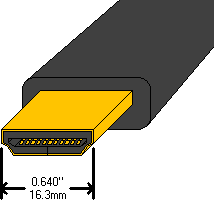
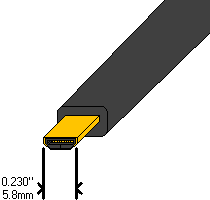
HDMI Connectors


Type A

Type B
Dual-Link
(not used much)

Type C
Mini HDMI

Type D
Micro HDMI

Type E
Automotive

Versions of HDMI

  • HDMI 1.1 – Audio added for DVD support.
  • HDMI 1.2 – Provides better support for PCs. Supports more resolutions.
  • HDMI 1.3 – Higher Speeds (up to 340 MHz), Deeper Colors (up to 48 bit). Came with a smaller (Type C mini) connector for use on cameras and camcorders.
  • HDMI 1.4 – Added an Ethernet Channel, allows devices to connect to the internet. Support for 3D and 4K video. Came with the smaller Type D micro and Type E automotive connector.
  • HDMI 2.0 – Higher Speeds to support 4K at 60 frames per second. Also supports up to 32 channels of audio.

Length rules

HDMI cables can be up to 65 feet in length without any boosters or amplifiers. The longer lengths do require a heavier gauge wire. Our M5133B comes in a variety of lengths. Our M5133B-PL cables have a plenum jacket. For lengths that require an amplifier, we have the M5133A.

Our ADP5130 combined with M5133-100 can provide a length of 100 feet. HDMI amplifiers connect to the receiving end of the HDMI connection. It would seem logical to connect it to the transmitting end but in the case of HDMI, it needs to be at the receiving end.

Our ADP5411 can extend HDMI up to 120 feet using two Cat 5e cables (resolutions up to 1080p)

Or use ADP5412 to extend HDMI up to 328 feet using a single Cat 5e cable (resolutions up to 4K at 30 fps)

Use WDB681090 wall jacks along with two Cat 5e / Cat 6 cables run inside the walls, up to 100 feet (resolutions up to 1080p), these decora inserts require a decora cover plate. These jacks will mount into our Wall Box Eliminators.

Use WDB681091 wall jacks along with two Cat 5e / Cat 6 cables run inside the walls, up to 150 feet (resolutions up to 1080p), also supports IR remote control connections. These jacks will mount into our Wall Box Eliminators.

Originally Posted right here: High Definition Multimedia Interface (HDMI)
When to Replace HDMI cables

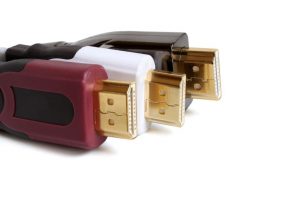
Just like any other cable, a HDMI cable must be replaced when it gets damaged or when you do not have the version you need. The following information should help you with your decision to replace a HDMI cable.

The version is written on the cable itself or on its packaging. You can choose between:

Standard HDMI cable

This version is designed to support streaming at a maximum resolution of 1080i (1920×1080) – HD resolutions, which are usually associated with satellite television and cable television, HD digital transmission, as well as upscaling DVD players.

High speed HDMI cable

This version is designed to handle 1080p video resolution and beyond, including advanced display technologies (3D, 4K, Deep Color). If you use any of these technologies then this is the recommended cable version for you.

High speed HDMI cable with Ethernet

This version is not recommended because the Ethernet feature is not available on most audio-video devices and is known to cause ARC port problems on some devices.

If you intend to connect the cable to a monitor and a tablet, for example, to play on the TV, purchase a more expensive cable, because you will get a quality product. There are many wires inside a 50 ft HDMI cable, and cheap products are known to be sensitive to movement (those wires inside break easily). However, don’t forget one important thing: no cable, be it expensive or not, is safe when it is bent at 90 degrees.

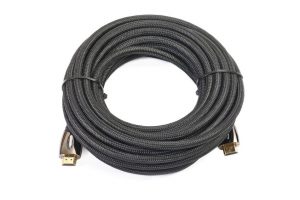
50 ft HDMI cable


First Seen on: When to Replace HDMI cables

How to Find OEM Cables

OEM is the abbreviation for Original Equipment Manufacturer. In the past it was referring more to the original manufacturer of the equipment (product). This term is not only present in the world PCs, but also in the telephone industry, auto industry and others.

The problem of fake cables is old. Sometimes, fake cables are even marketed by large retailers. Buyers being generally very price sensitive, it is obvious that a cheaper version of a product will draw their attention. From bargain sellers on ad sites to some department stores, customers buy fake cables, enjoying the low prices, even if they regret their decision in many cases, when they find out that the product they bought is low-quality and may have a negative effect of the device they use it with.

 OEM cable distribution

Obviously, the easiest way to avoid damage from counterfeit cables is to use OEM cables distributed by IEC. These are designed to work with the devices they are marketed with and will not create problems. These cables can be purchased from the authorized distributors of the respective brands. However, if you buy such a cable from someone else, carefully examine the packaging and the cable itself and make sure it has the correct logo and brand name it was designed for.

Original Post right here: How to Find OEM Cables

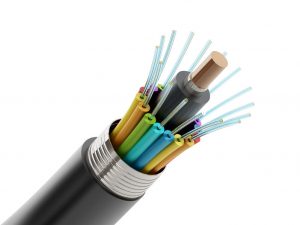
What is a Fiber Optic Cable?

Nowadays, popular fiber optic cable has multiple uses. Basically, all the major telecommunications distribution networks are built on this technology. Different optical, analog and/ or digital signals can be transmitted through fiber optic cables. They allow massive and long distance communications, the transmission distance depending on the power of the equipment mounted at their ends.

fiber optic cable

Fiber optic cables can have one or more wires. The models nowadays have 2, 4, 8, 12, 24, 48, 96, 144, or 288 wires. For larger cables, the wires can be grouped together (buffers) having similar coding with the wires. 12 colors are used by this coding system, to allow easier identification of the wires in the cables.

For example, a fiber optic cable with 48 wires can have a structure of 4 buffers with 12 wires each, the buffers having the colors blue, orange, green and brown, and the wires having the colors blue, orange, green, brown, white, gray, red, black, yellow, purple, pink and blue. If, for example, we want to find wire 23 of 48, we will choose the orange buffer and the pink thread. For easier understanding you can look at a table that contains the structure of fiber optic cables. You can also contact IEC to find out even more detailed information about different types of cables and their uses.

Original Post on: What is a Fiber Optic Cable?

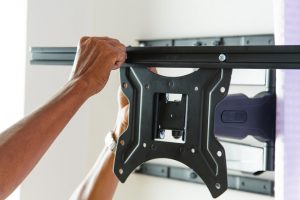
Steps to Mount a TV

Choosing the right location for the TV in the living room, bedroom or kitchen is very important for the viewing experience. Before you do this, you need to understand what aspects you must consider in order to properly mount a TV. The location must be chosen correctly from the beginning, because you surely want to avoid making too many holes in the wall.

TV wall brackets

To mount and install a TV, you will need quality TV wall brackets suitable for the size of your TV and a drill.

Before mounting the TV, you should check the wall. If it is a fake wall, you must install the TV somewhere else, on a regular wall, able to bare its weight. After choosing the right location, it is time to install the bracket on the wall. This support may come in the form of plates locking the TV in one position, or adjustable arms that allow the TV to be moved both vertically and diagonally.

Do not connect the TV to a power source before mounting the bracket and fixing the TV on it. Make sure the space behind the TV is large enough to prevent overheating.

Connect the jacks and the power cord before fixing the TV on the bracket, because you may not have enough room to do this afterwards.


First Posted right here: Steps to Mount a TV

What is the Purpose of a HDMI Cable?

HDMI stands for High Definition Multimedia Interface, which is an interface used for the transmission of high quality audio and video data.

If you are wondering why HDMI cable is better than the analog cable, the answer is that, unlike the analog cable, HDMI is a digital uncompressed source. The difference is simple: the analog cables takes a digital signal and convert it into a weaker analog signal which is then transmitted to your TV. This signal is then converted again to digital, for playback on the screen. With these multiple conversions of the original signal, the clarity of the image is lost, the result being less clear picture and low quality sound. An HDMI cable retains the original digital signal, eliminating the need for conversion, the result being a clear and very clean image, as well as sound at the highest quality.

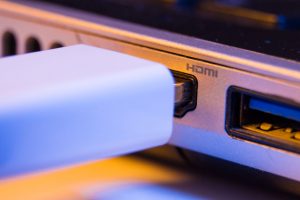
HDMI cable plug inserted into port on the side of a l

The HDMI cable can be used on PC, DVD player, console etc.

Although it looks very similar with a USB cable, it has 19 wires inside. What is different about this cable is that it can transmit content with a bandwidth of 10.2 Gbps. Its capacity is remarkable if we consider that it is twice bigger than the necessary to transmit multiple audio or video channels. The conclusion is that, obviously, this type of cable is going to be used a long time from now.


First Seen here: What is the Purpose of a HDMI Cable?

What is a VGA Cable?

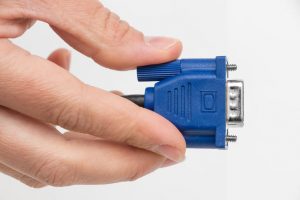
VGA Cable

VGA stands for Video Graphics Array. VGA was created in 1987 by IBM, and is known as the “blue cable with 15 pins and screws”, the latter being used to secure the connection. The VGA cable is the one that enters in the matching jack, making the connection between two devices.

VGA can display resolutions up to 1080p, but the major problem with this type of connection is that it uses analog signals to transmit signals to a receiver, which results in poorer image quality compared to other digital interfaces.

VGA cable ports are found on older systems. Not all recently manufactured TVs, computers, monitors and laptops have VGA ports. Also, a separate audio connector is required if you need to transmit audio signals as well, because the VGA can work only with video signals. The length of the cable and its quality play an important role when it comes to signal degradation.

Slowly, the VGA port will be removed completely from the manufacture of new devices. With this information we do not want to discourage you from using the VGA port, but if the system you have allows for connections higher than the VGA, we recommend using them for a better image quality.


First Seen here: What is a VGA Cable?

Which Cables Are Commonly Needed for Office Settings?

Office work involves lots of processes that require the usages of electrical and digital devices, all of which use cables to get the power they need and to communicate with each other. Here are the most common cables that you will need in your office:

  • Cables for connectivity – the three most important areas of connectivity that you will need cables for in your office are Wi-fi, PoE (Power over Ethernet) and the cables for your In-Building Wireless system;
  • Access to electricity – besides communication cables, you will need power cables for each of your devices. Depending on the layout of your office and on the number of power outlets in your walls, you will probably need power cord extensions and splitters to make sure that each of your devices is safely plugged to your power outlets.

long HDMI cable

The range of the cables that you need to set up your office might not seem too wide, but to have an efficient and comfortable office that is also safe to use, you will need to get cables of optimal lengths, (in some instances, you may need an extra long hdmi cable) and you will also need to figure out how to keep the cables organized neatly with raceways, sleeves or other organization solutions.

First Seen right here: Which Cables Are Commonly Needed for Office Settings?

Frequently Asked Questions for Interface Cables

Common USB cable solutions:

Question Answer
Can I add USB ports to my Mac or PC? You will need to add a USB controller card to your Mac or PC.
Is it possible network computers with USB to share files and peripherals? You will need a USB “SmartNet” cable.
Can I connect a device that’s more than 16 feet from my hub? You will need an “active” repeater extension cable.
How can I use my USB port to connect to a network? You will need a USB to Ethernet adapter.
How can I use a parallel port printer with USB? You are going to need a USB to parallel (IEEE-1284) converter.
How can I connect my PS/2 mouse and keyboard to a USB port? You will need a USB to PS/2 port converter.
How can I connect a serial device to USB? You will need a USB to serial converter.
How can I share USB devices between computers? You will need a USB switchbox. Don’t forget your cables too!

Wireless Solutions:

Can I mix 802.11 (2Mbps) with 802.11b (11Mbps) products? 802.11 and 802.11b products can exist and operate together on the same network. Unfortunately, not all implementations of 802.11 or 802.11b were done correctly. For the most part it WILL work, but there are exceptions. This is why the Wi-Fi interoperability certification was created.
What does a wireless access point do? In its simplest form, a wireless access point is a bridge between wired Ethernet and wireless Ethernet (802.11b). An access point is not needed for two wireless computers to talk to each other, but it is vital for free communication between wired and wireless networks.
Do I need an access point to connect two wireless computers? No. All wireless cards can be put into an ‘ad hoc’ mode that allows them to communicate directly to each other. An access point is not needed. Use an access point only when you need to bridge your wireless network with your wired Ethernet network.
I am having trouble getting my wireless cards to communicate. If you are using WEP (encryption) try turning it off. Encryption is sometimes hard to get running so you should start with it turned off. Once you get it running, READ THE INSTRUCTIONS again. Lastly, be sure you are not mixing encryption levels.
What is IEEE 802.11? The IEEE 802.11 is a wireless LAN industry standard, and the objective of IEEE 802.11 is to make sure that different manufactures’ wireless LAN devices can communicate to each other. 802.11 provides 1 or 2 Mbps transmission in the 2.4 GHz ISM band using either FHSS (Frequency Hopped Spread Spectrum) or DSSS (Direct Sequence Spread Spectrum)
What is 802.11a? 802.11a the second revision of 802.11 that operates in the unlicensed 5 GHz band and allows transmission rates of up to 54Mbps. 802.11a uses OFDM (orthogonal frequency division multiplexing) as opposed to FHSS or DSSS. Higher data rates are possible by combining channels. Due to higher frequency, distance range is less than lower frequency systems (i.e., 802.11b and 802.11g) and can increase the cost of the overall solution because a greater number of access points may be required. 802.11a is not directly compatible with 802.11b or 802.11g networks. In other words, a user equipped with an 802.11b or 802.11g radio card will not be able to interface directly to an 802.11a access point. Multimode NICs will solve this problem.
What is 802.11b? 802.11b is the first revision of 802.11 standard allowing data rates up to 11Mbps in the 2.4GHz ISM band. Also known as 802.11 High-Rate and Wi-Fi. 802.11b only uses DSSS, the maximum speed of 11Mbps has fallbacks to 5.5, 2 and 1Mbps.
How fast is 802.11b? The IEEE 802.11b standard has a nominal speed of 11 megabits per second (Mbps). However, depending on signal quality and how many other people are using the wireless Ethernet through a particular Access Point, useable speed will be much less (on the order of 4 or 5 Mbps, which is still substantially faster than most dialup, cable and DSL modems).
What is 802.11g? 802.11g is an extension to 802.11b. 802.11g increases 802.11b’s data rates to 54 Mbps and still utilizes the 2.4 GHz ISM. Modulation is based upon OFDM (orthogonal frequency division multiplexing) technology. An 802.11b radio card will interface directly with an 802.11g access point (and vice versa) at 11 Mbps or lower depending on distance range. The distance range at 54 Mbps is less than for 802.11b operating at 11 Mbps.
Can radio signals pass through walls? Transmitting through a wall is possible depending upon the material used in its construction. In general, metals and substances with a high water content do not allow radio waves to pass through. Metals reflect radio waves and concrete attenuates radio waves. The amount of attenuation suffered in passing through concrete will be a function of its thickness and amount of metal re-enforcement used.
What are potential factors that may causes interference among WLAN products? Factors of interference:

  1. Obstacles: walls, ceilings, furniture… etc.
  2. Building Materials: metal door, aluminum studs.
  3. Electrical devices: microwaves, monitors, electric motors.

Solution:

  1. Minimizing the number of walls and ceilings
  2. Antenna is positioned for best reception.
  3. Keep WLAN products away from electrical devices, (like microwaves, monitors, electric motors… etc.)
  4. Add additional Access Points if necessary.
What’s the difference between a WLAN and a WWAN? WLANs are generally privately owned, wireless systems that are deployed in a corporation, warehouse, hospital, or educational campus setting. Data rates are high and there are no per-packet charges for data transmission.
WWANs are generally publicly shared data networks designed to provide coverage in metropolitan areas and along traffic corridors. WWANs are owned by a service provider or carrier. Data rates are low and charges are based on usage. Specialized applications are characteristically designed around short, burst messaging.
What is Direct-Sequence Spread Spectrum Technology – (DSSS)? DSSS spreads its signal continuously over a wide frequency band. DSSS maps the information bearing bit-pattern at the sending station into a higher data rate bit sequence using a “chipping” code. The chipping code (also known as processing gain) introduces redundancy which allows data recovery if certain bit errors occur during transmission. The FCC rules the minimum processing gain should be 10, typical systems use processing gains of 20. IEEE 802.11b specifies the use of DSSS.
What is Frequency-hopping Spread Spectrum Technology – (FHSS)? FHSS uses a narrowband carrier which hops through a predefined sequence of several frequencies at a specific rate. This avoids problems with fixed channel narrowband noise and simple jamming. Both transmitter and receiver must have their hopping sequences synchronized to create the effect of a single “logical channel”. To unsynchronized receivers an FHSS transmission appears to be short-duration impulse noise. 802.11 may use FHSS or DSSS.
How do I secure the data across an Access Point’s radio link? Enable Wired Equivalency Protocol (WEP) to encrypt the payload of packets sent across a radio link.
What is WEP? Wired Equivalent Privacy. WEP is a security mechanism defined within the 802.11 standard and designed to make the security of the wireless medium equal to that of a cable (wire). WEP data encryption was designed to prevent access to the network by “intruders” and to prevent the capture of wireless LAN traffic through eavesdropping. WEP allows the administrator to define a set of respective “Keys” for each wireless network user based on a “Key String” passed through the WEP encryption algorithm. Access is denied by anyone who does not have an assigned key. WEP comes in 40/64-bit and 128-bit encryption key lengths. Note, WEP has shown to have fundamental flaws in its key generation processing.

Original Post over here: Frequently Asked Questions for Interface Cables

Signs You Might Need to Order A Custom Cable

Custom cables are cables designed to your exact specifications, to meet the requirements of your special application. Here are some scenarios that can be efficiently solved by ordering OEM cable:

  • The application that you need the cable for requires a cable core made from a special metal alloy to meet your special requirements in terms of conductivity;
  • The cable that you use needs housing made from a special material able to perform among special circumstances, such as extreme temperatures or environments that would damage standard housing;
  • You need special cables that have non-standard, special plugs;
  • You have redesigned an existing product of yours to make it more efficient and you need a new cable configuration to fit into the redesigned unit;
  • You have designed an entirely new product that requires an entirely new cable configuration in terms of the plugs, the materials used for the core or for the housing, the length, the thickness or the number of wires that make up the core of the cable.

OEM cable

The process of ordering custom cables starts with a definition of your special needs, followed by the design of the custom cable either by your own designers or by the OEM cable designers of the custom cable manufacturing company, followed by the production of your cables.

Original Post here: Signs You Might Need to Order A Custom Cable

Design a site like this with WordPress.com
Get started